How to Set Up a Custom Domain for Your Status Page
Step-by-step guide to setting up a custom domain for your status page. Why it matters, how to configure CNAME and SSL, and LiveStatus-specific instructions that get you live in under 10 minutes.
Your status page URL matters more than you think. A page at yourbrand.livestatusapp.com communicates "we threw this together quickly." A page at status.yourbrand.com communicates "we built reliability infrastructure." The content can be identical. The signal is completely different.
This guide covers why custom domains matter, how DNS and SSL actually work for status pages, and the exact steps to get your LiveStatus page running on your own domain in under 10 minutes.
Why the domain matters
When something breaks, the first place customers look is your status page. They typed status.yourapp.com into their browser, or clicked the link you put in your app's error states. That moment of friction between "something is wrong" and "I can find information" determines whether the customer files a support ticket, cancels their subscription, or just waits.
A generic subdomain on your monitoring tool's domain adds friction. It looks unfamiliar. Customers aren't sure if they're in the right place. It doesn't appear in your DNS so IT security teams flag it. Enterprise procurement teams won't accept it as a reliability artifact.
There's also a practical SEO consideration. Your custom domain status page gets indexed. Searches for "[your product] status" can surface your actual status page instead of a third-party outage tracker or a complaint thread on Reddit. That's the kind of organic search presence you want to own.
How custom domains work for status pages
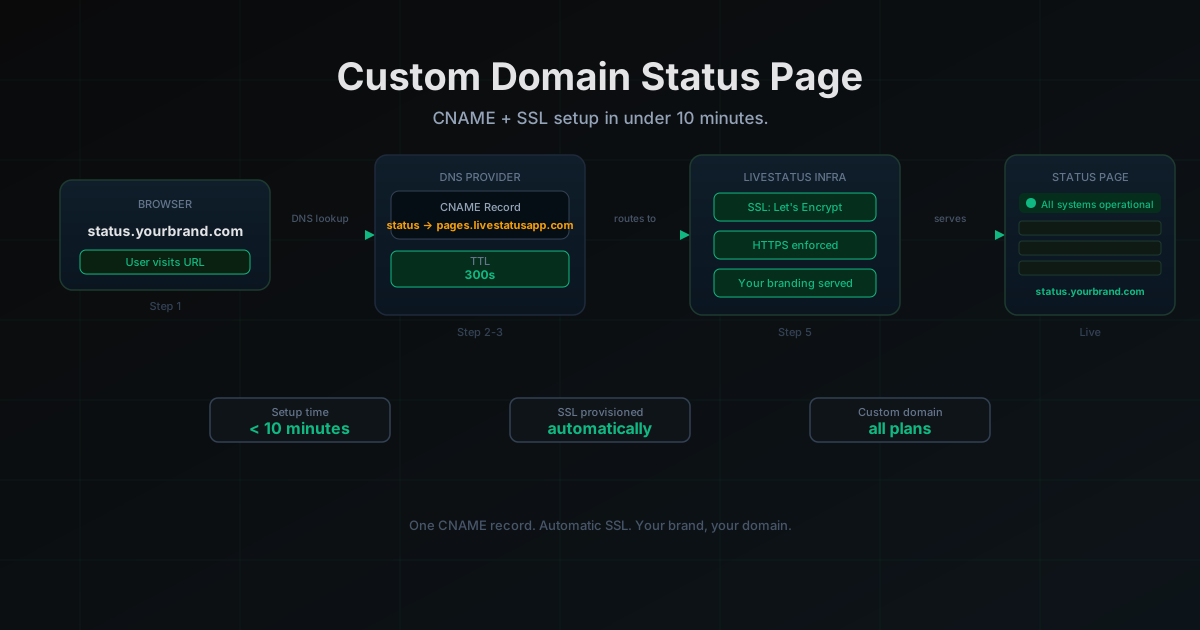
A status page custom domain is a standard CNAME record. Your domain (status.yourbrand.com) points to the status page provider's infrastructure, which handles the routing and serves your page. SSL is provisioned automatically via Let's Encrypt or a similar certificate authority once the DNS record is in place.
Here's the chain: browser requests status.yourbrand.com, DNS resolves the CNAME to the provider's servers, the provider matches the hostname, serves your status page over HTTPS. The whole thing is invisible to the visitor. They just see your domain, your branding.
The important thing to understand is that the SSL certificate is issued to your domain, not the provider's domain. Which means it appears in your certificate transparency logs. Your enterprise customers' security teams can verify it. Your SOC 2 auditors can verify it. That matters at scale.
Before you start
You need:
- Access to your DNS provider (Cloudflare, Route 53, Namecheap, GoDaddy, wherever your domain lives)
- A LiveStatus account with a status page already configured
- About 10 minutes
We're going to use status.yourbrand.com as the example throughout. Substitute your actual domain.
Step 1: Choose your subdomain
The convention is status.yourbrand.com. It's what developers and IT teams expect to type. Stick with it unless you have a strong reason not to.
If status is already taken by something else (a product feature, an internal tool), statuspage.yourbrand.com or incidents.yourbrand.com are reasonable alternatives. The key is that it's predictable. Your customers shouldn't have to guess.
Avoid putting the status page on a path of your main domain (yourbrand.com/status). This is technically possible with some proxy setups, but it creates problems: your main site going down takes the status page down with it. The whole point of a status page is that it's reachable when things are broken. A separate subdomain means it runs independently.
Step 2: Add the CNAME record in LiveStatus
Log into LiveStatus and navigate to your status page settings. Under the "Custom Domain" section, you'll see a CNAME target that looks something like pages.livestatusapp.com. Copy that value.
LiveStatus will show you the exact CNAME target for your account. It may include a unique identifier. Use whatever LiveStatus gives you, not the generic example above.
While you're in the settings, enter your intended domain (status.yourbrand.com) in the custom domain field and save it. LiveStatus needs to know what domain to expect before it can provision SSL. Add the domain here first, then go configure DNS.
Step 3: Add the DNS record
Open your DNS provider. Find where you manage DNS records for your domain. You're adding a CNAME record.
Record type: CNAME
Name / Host: status (just the subdomain portion, not the full domain)
Target / Value: the CNAME target LiveStatus gave you
TTL: 300 seconds (5 minutes) to start -- you can increase it later
In Cloudflare specifically: turn off the Cloudflare proxy (orange cloud) for this record. The status page infrastructure needs to see the real origin request to provision SSL correctly. Set it to "DNS only" (grey cloud). Once SSL is provisioned, you can experiment with proxied mode, but start with it off.
In Route 53: add the CNAME in the hosted zone for your domain. Alias records don't work here -- use a standard CNAME.
In Namecheap or GoDaddy: use the "Advanced DNS" or "DNS Management" panel. Add a CNAME with host status and value set to the LiveStatus target. Do not add a trailing dot; some providers do that automatically.
Step 4: Wait for DNS propagation
DNS propagation takes anywhere from a few seconds to 48 hours, depending on your domain registrar and the previous TTL on the record. In practice, with a TTL of 300 and a new record (nothing to expire), you'll typically see global propagation in 5 to 15 minutes.
You can check propagation at dnschecker.org. Enter status.yourbrand.com, select CNAME, and run the check. You're looking for your target value to appear from most global locations. Some locations always lag. Don't wait for 100% -- 80% global propagation is enough to proceed.
If your record isn't propagating, the most common culprits are:
- You added the full domain as the hostname instead of just
status(createsstatus.yourbrand.com.yourbrand.com) - The Cloudflare proxy is enabled (orange cloud instead of grey)
- You're checking propagation before the record has even saved in your DNS panel
Step 5: SSL provisioning
Once DNS is propagating, LiveStatus will automatically attempt to provision an SSL certificate for your domain. This happens via ACME HTTP-01 challenge. LiveStatus makes a file temporarily available at http://status.yourbrand.com/.well-known/acme-challenge/..., Let's Encrypt verifies it, and issues the certificate.
This usually completes within 5 minutes of DNS propagating. You'll see the SSL status update in your LiveStatus settings.
If SSL provisioning fails:
- Confirm the CNAME is resolving correctly (use
dig status.yourbrand.com CNAMEfrom your terminal) - Check that Cloudflare proxy mode is off (if you're using Cloudflare)
- Make sure port 80 isn't blocked for the LiveStatus infrastructure -- some corporate DNS setups do this
Once SSL is provisioned, LiveStatus automatically redirects HTTP to HTTPS. You don't need to do anything.
Step 6: Verify your status page
Visit https://status.yourbrand.com in your browser. You should see your LiveStatus status page with your branding, served over HTTPS, with a valid certificate issued to your domain.
Check a few things:
- The certificate is issued to
status.yourbrand.com(click the padlock in your browser) - Your custom branding appears (logo, colors)
- The page shows your actual service status
- All links within the page work correctly
Also verify from a private/incognito window and from a mobile device. Cached DNS can make things look correct on your machine even when there are issues. The incognito test catches that.
Step 7: Update your references
Now that the custom domain is live, update everywhere you've referenced your status page:
- App error messages and maintenance pages
- Help center / documentation
- Footer links on your main site
- Email templates for incident notifications
- Your API documentation if you reference status page URLs
- Your Slack workspace if you've pinned the status page link somewhere
If you're using LiveStatus's subscriber notifications, the emails will automatically use your custom domain for unsubscribe links and status page references. No additional configuration needed.
Ongoing maintenance
Custom domain status pages are largely set-and-forget. A few things worth monitoring:
SSL renewal: LiveStatus handles this automatically. But SSL certificates can fail to renew if your DNS changes. If you ever modify your DNS setup, verify the status page still loads correctly afterwards.
Domain changes: If you ever change your primary domain (company rebrands, acquisition, etc.), update your status page custom domain in LiveStatus settings before changing DNS. The sequence matters: add new domain in LiveStatus first, configure DNS for new domain, verify SSL, then remove old domain.
DNS TTL: Once everything is stable, you can increase the TTL on the CNAME record to reduce DNS query volume. 3600 (1 hour) is a reasonable production value.
The result
Your customers now have a predictable, professional URL for service status. It shows up in your DNS. It validates under your domain. It works when your main site is having issues because it's independent infrastructure.
The setup takes less than 10 minutes. The trust signal it sends lasts as long as you run the service.
If you don't have a LiveStatus account yet, get started free -- the custom domain setup is included in all plans, including the free tier.
More posts
The Best BetterStack Alternative in 2026: LiveStatus
Looking for a BetterStack or Statuspage alternative? LiveStatus gives you beautiful status pages and uptime monitoring without the enterprise price tag.
Why Every API Provider Needs a Status Page
API providers without a status page are leaving developer trust on the table. Here's what a proper API status page does, what it covers, and why it reduces your support load while your incidents are still in progress.
How a Status Page Cuts Support Tickets by 40%
The math behind how a status page reduces support ticket volume during incidents. Email subscribers, SMS alerts, proactive communication, and why the ROI shows up in your support metrics within the first incident.